Call CA Tally HelpDesk
+91 9205471661,
7428779101
Introduction
One of the most common concerns faced by Tally users is:
“Why are some ledgers not visible in my Balance Sheet?”
In Tally Prime, the Balance Sheet is generated automatically based on ledger grouping, voucher entries, and configuration settings. If even one of these is incorrect, certain ledgers may appear hidden, merged, or completely missing.
This article explains all possible reasons why ledgers do not appear in the Balance Sheet, along with clear, step-by-step solutions that anyone can follow—whether you are a business owner, accountant, or CA.
Understanding How Balance Sheet Works in Tally Prime
Tally Prime prepares the Balance Sheet using:
- Ledger groups (Assets / Liabilities)
- Debit and credit balances
- Voucher posting dates
- Report configuration settings
If a ledger does not meet the criteria to appear under Assets or Liabilities, it may not show as expected.
Tally Prime follows accounting logic defined by Tally Solutions, meaning structure and accuracy are more important than manual adjustments.
Main Reasons Why Ledgers Are Not Visible in Balance Sheet
Let us understand each reason in detail.
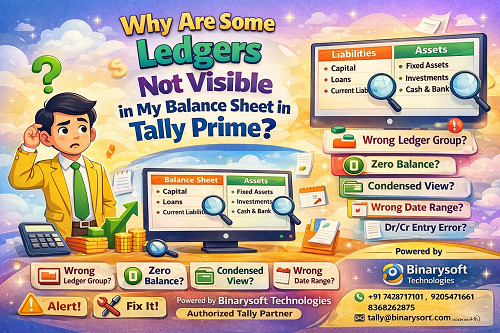
1. Ledger Is Created Under the Wrong Group
This is the most common reason.
If a ledger is grouped incorrectly, it may:
- Appear under the wrong head
- Appear in Profit & Loss instead of Balance Sheet
- Not appear at all in Balance Sheet
Example:
- Office Rent wrongly grouped under Indirect Expenses
- Loan account grouped under Sundry Creditors instead of Loans (Liability)
Solution:
- Go to Gateway of Tally → Chart of Accounts → Ledgers
- Open the ledger
- Check Under Group
- Assign correct group (Assets / Liabilities)
- Save the ledger
2. Ledger Has Zero Balance
By default, Tally Prime hides zero-balance ledgers in many reports.
Result:
- Ledger exists
- Ledger is correctly grouped
- But does not appear in Balance Sheet
Solution:
- Open Balance Sheet
- Press F12 (Configure)
- Set Show Zero Balances = Yes
- Accept the screen
Now all ledgers—including zero-balance ones—will be visible.
3. Balance Sheet Is in Condensed View
Tally Prime shows a summary view by default.
Result:
- Groups are visible
- Individual ledgers are hidden inside groups
Solution:
- Press Alt + F1 to toggle Detailed View
This expands the Balance Sheet and displays all sub-groups and ledgers.
4. Netting of Balances Is Enabled
Tally may net off balances such as:
- Sundry Debtors vs Creditors
- Advances adjusted against payables
Result:
- Individual ledger balances are merged
- Ledger appears “missing”
Solution:
- Press F12 (Configure) in Balance Sheet
- Set Show Net Balance = No
- Accept
This shows gross balances instead of net values.
5. Ledger Balance Falls Under Profit & Loss Instead of Balance Sheet
Some ledgers are temporary in nature and affect Profit & Loss, not Balance Sheet.
Examples:
- Sales
- Purchase
- Expenses
- Income accounts
These will never appear in Balance Sheet unless they are closing balances transferred to capital.
✔️ This is normal accounting behavior.
6. Voucher Entries Are Posted on Wrong Side (Dr/Cr)
Incorrect debit or credit entries can push balances into unexpected places.
Example:
- Asset credited instead of debited
- Liability debited instead of credited
Result:
- Ledger appears under wrong side
- Appears negative or hidden
Solution:
- Drill down the ledger
- Review voucher entries
- Correct debit/credit postings
7. Date Range Is Incorrect
If the Balance Sheet date does not cover the transaction period:
- Ledger may not appear
- Balance may show as zero
Solution:
- Press F2 (Date)
- Select correct financial year or date
- Refresh the report
8. Ledger Is Created as Inventory or Cost Category
Some ledgers linked with:
- Stock items
- Cost categories
- Optional vouchers
may not reflect directly in Balance Sheet.
Solution:
- Ensure inventory is properly valued
- Check stock valuation method
- Verify cost category allocation
9. Opening Balance Is Not Entered Correctly
If opening balances are missing or incorrect:
- Ledger may not appear
- Balance Sheet may not tally
Solution:
- Go to Ledger Alteration
- Verify Opening Balance
- Ensure correct debit or credit entry
10. Ledger Is Inactive or Deleted
If a ledger is:
- Deleted
- Not used in vouchers
- Created but never saved properly
It may not appear.
✔️ Always confirm ledger existence in Chart of Accounts.
How to Identify Missing Ledgers Quickly
Use Group Summary
- Open Balance Sheet
- Select any group
- Press Alt + Enter
Use Ledger Report
- Gateway of Tally → Display More Reports → Ledger
- Select the ledger
- Verify balance and voucher entries
Best Practices to Avoid Missing Ledgers
- Always select correct ledger group
- Avoid posting directly to group heads
- Regularly review Balance Sheet in detailed view
- Reconcile balances monthly
- Verify opening balances at year start
Business Impact of Missing Ledgers
If ledgers are not visible:
- Financial statements become inaccurate
- Compliance issues may arise
- Audit queries increase
- Business decisions may be affected
Correct display ensures clarity, compliance, and confidence.
About Binarysoft Technologies
For expert help in Tally setup, ledger structuring, balance sheet correction, and compliance:
Powered by Binarysoft Technologies – Authorized Tally Partner
�� Location:
1626/33, 1st Floor, Naiwalan, Karol Bagh, New Delhi – 110005, INDIA
�� Contact Us:
+91 7428779101
+91 9205471661
+91 8368262875
�� Email:
tally@binarysoft.com
�� Working Hours:
10:00 AM – 6:00 PM (Mon–Fri)
Binarysoft Technologies provides professional support for Tally Prime, ensuring your financial reports are accurate and audit-ready.
Conclusion
If some ledgers are not visible in your Balance Sheet, it is not a software error—it is usually due to grouping, configuration, or entry-related issues. Once these are corrected, Tally Prime will display all ledgers accurately.
For professional assistance and long-term accuracy, trust Binarysoft Technologies.
Frequently Asked Questions
Why does my ledger not show even after correct grouping?
Check zero-balance settings and detailed view configuration.
Can expense ledgers appear in Balance Sheet?
No. Expenses and incomes appear in Profit & Loss, not Balance Sheet.
Why is my ledger balance showing under the wrong side?
This usually happens due to incorrect debit or credit entry.
How do I force all ledgers to appear?
Enable Show Zero Balance = Yes and use Alt + F1 detailed view.
CA. Shivesh Khandelwaal is a practicing Chartered Accountant experienced in accounting automation, compliance management, and audit support. He has worked with trading and distribution businesses to improve inventory visibility and financial reporting. His articles focus on real-world applicability.