Set TallyVault for Your Company

Call CA Tally HelpDesk +91 9205471661, 7428779101

Set TallyVault for Your Company
By CA. Shivesh Khandelwaal   |   Published on: 08-02-2023 | 8 min read

Set TallyVault for Your Company

TallyVault is an enhanced security system that allows encryption of your company data. Based on your business environment, if you want to maintain privacy of the company that you have created in TallyPrime, use TallyVault. Providing a TallyVault password encrypts your company and all the transaction details, including the company name. Next time you open your company, you will need to first enter this password to view the company name and other details.

Set TallyVault While Creating Your Company

If you do not the company name to be displayed in TallyPrime while selecting the company, you can specify a TallyVault password for your company. This encrypts your company and therefore ensures privacy of the company data. You can access this company only if you know this password. This password cannot be retrieved, if lost. Refer to the TallyVault topic for details on managing TallyVault.

  1. Create a Company in TallyPrime.
  2. Set the TallyVault password under Security.
    1. Set TallyVault Password to encrypt Company DataYes.
    2. TallyVault Password: Enter a password to encrypt your data.
    3. Confirm TallyVault Password: Reenter the same password to confirm.
      Note that forgetting this password will result in permanently losing access to your company data.
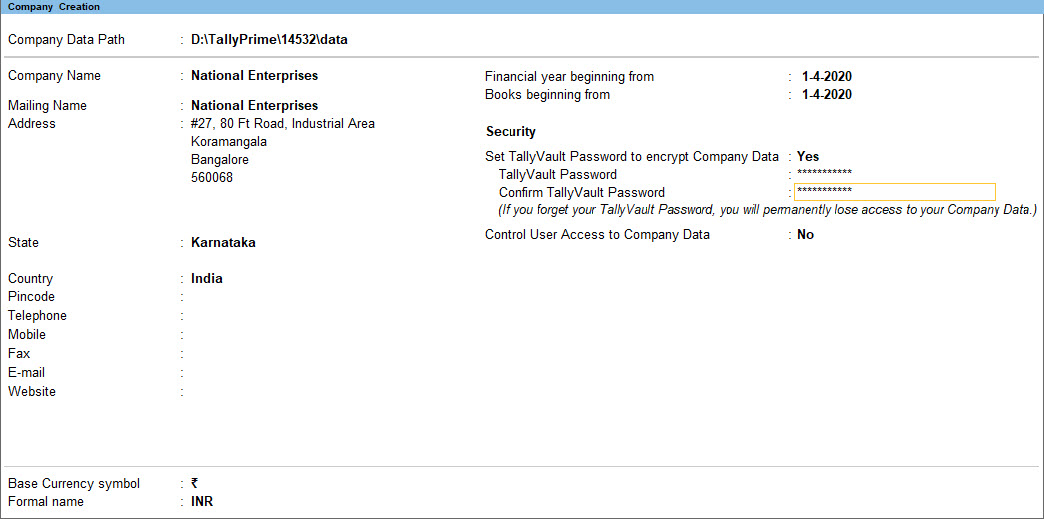
      Set TallyVault for Company
       
  3. Provide other necessary details and accept the screen. As always, you can press Ctrl+A to save.
Set TallyVault After Creating Your Company

If you had already created a company without setting a TallyVault password, no worries. You can do so anytime later.

  1. Press Alt+K (Company) > TallyVault.
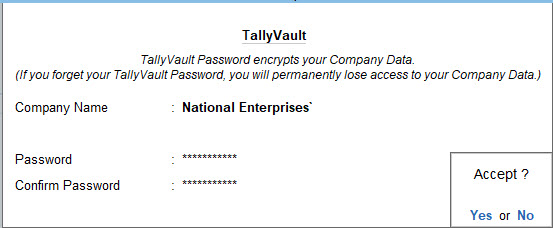
  2. In the TallyVault screen:
    1. TallyVault Password: Enter a password to encrypt your data.
    2. Confirm TallyVault Password: Reenter the same password to confirm.
      Note that forgetting this password will result in permanently losing access to your company data.
  3. Accept the screen.As always, you can press Ctrl+A to save.

    Set TallyVault for Company after creation
     
  4. Reconfirm by pressing Y on the message screen.
    Since you are setting the password for the first time for your company, your will be prompted to reconfirm.
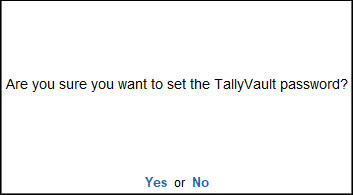
    Set TallyVault Password
  5. Press Y on the next confirmation screen, if you want to create a copy of the original company without the password.

    Create a Copy of TallyVault Company
    Pressing No will not create a copy of the original company. However, there may be certain exceptions.
  6. Provide the TallyVault Password to open the encrypted company.

You have just created a company with TallyVault password. Next time when you view the list of companies, the company name will appear with a set of asterisks along with the company number visible.

Alter TallyVault for Your Company

If you had already created a company with a TallyVault password, you can alter the password anytime you need.

  1. Press Alt+K (Company) > TallyVault.
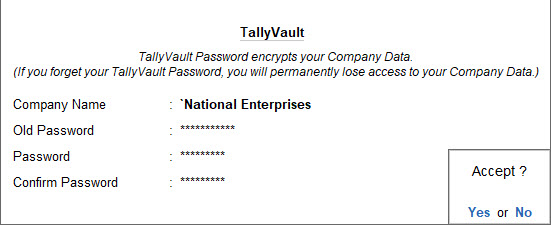
  2. In the TallyVault screen:
    1. Old Password: Enter the existing password.
    2. Password: Enter a new password. This password should be different from your old password.
    3. Confirm TallyVault Password: Reenter the same new password to confirm.
      Note that forgetting this password will result in permanently losing access to your company data.
  3. Accept the screen.As always, you can press Ctrl+A to save.

     
  4. Reconfirm by pressing Y on the message screen.
    Since you are altering your existing TallyVault password for your company, your will be prompted to reconfirm.
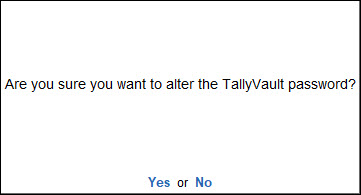
    Alter TallyVault Password for Company
  5. Press Y on the next confirmation screen, if you want to create a copy of the company without the password.
  6. Provide the TallyVault Password to open the encrypted company.

You have altered the TallyVault password for your company successfully. Next time you need to select this company from the list of companies, you will find the company name with a set of asterisks along with the company number.

TallyVault Exceptions

Scenario:

While setting the TallyVault password, if you select No when you see the following message:
Create a Copy of TallyVault Company

  • If Antivirus software is installed on your system, it may interrupt the process due to scheduled or real-time scan.
  • If there is a power failure, the process will be interrupted.

Solution:

In either of the scenarios, there will be no data loss. However, your company data might reside either in the existing Company folder or in a Temp company folder.

  1. If data resides in the existing Company folder, you can continue to access the data by providing the TallyVault password.
  2. If data resides in the Temp folder, you can simply rename the Temp folder to an existing company number and open the company.


About the Author

Written by CA. Shivesh Khandelwaal • 08-02-2023

CA. Shivesh Khandelwaal is a practicing Chartered Accountant experienced in accounting automation, compliance management, and audit support. He has worked with trading and distribution businesses to improve inventory visibility and financial reporting. His articles focus on real-world applicability.


Verified Content 8 min read Support: +91 9205471661, 7428779101

Need Quick Support for Tally Prime?

For Tally Prime discount schemes and product inquiries, connect with our team.

+91 9205471661 | +91 7428779101

Subscribe For Product Updates

Opt-in Subscription

Tally Prime Auditor Renewal (One Year)

Applicable for CAs / Firms Using GOLD (Multi User ) Only
Renew your license now and upgrade from Tally ERP 9 to Tally Prime for Free!
Rs 6750 + 18% GST (Rs 1215)
Continue Here >>

Tally Prime Auditor Renewal (Two Years)

Applicable for CAs / Firms Using GOLD (Multi User ) Only
Renew your license now and upgrade from Tally ERP 9 to Tally Prime for Free!
Rs 12150 + 18% GST (Rs 2187)
Offer Continue Here >>

Tally Prime Gold Renewal (One Year)

Unlimited Multi-User Edition For Multiple PCs on LAN Environment
Renew your license now and upgrade from Tally ERP 9 to Tally Prime for Free!
Rs 13500 + 18% GST (Rs 2430)
Continue Here >>

Tally Prime Gold Renewal (Two Years)

Unlimited Multi-User Edition For Multiple PCs on LAN Environment
Renew your license now and upgrade from Tally ERP 9 to Tally Prime for Free!
Rs 24300 + 18% GST (Rs 4374)
Offer Continue Here >>

Tally Prime Silver Renewal  (One Year)

Single User Edition For Standalone PCs ( Not applicable for Rental License )
Renew your license now and upgrade from Tally ERP 9 to Tally Prime for Free!
Rs 4500 + 18% GST (Rs 810)
Continue Here >>

Tally Prime Silver Renewal  (Two Years)

Single User Edition For Standalone PCs ( Not applicable for Rental License )
Renew your license now and upgrade from Tally ERP 9 to Tally Prime for Free!
Rs 8100 + 18% GST (Rs 1458)
Offer Continue Here >>

Tally On Cloud

Tally On Cloud ( Per User Annual)
Now access Tally Prime anytime from anywhere – Just Deploy your Tally License and Tally Data on our Cloud Solution.
Rs 7000 + 18% GST (Rs 1260)
Continue Here >>

Tally Prime Gold

Unlimited Multi-User Edition
For EMI options, please Call: +91 742 877 9101 or E-mail: tally@binarysoft.com (10:00 am – 6: 00 pm , Mon-Fri)
Rs 67500 + 18% GST (Rs 12150)
Continue Here >>

Tally Prime Silver to Tally Prime Gold

Unlimited Multi-User Edition For Multiple PCs on LAN Environment
Renew your license now and upgrade from Tally ERP 9 to Tally Prime for Free!
Rs 45000 + 18% GST (Rs 8100)
Continue Here >>

Tally Prime Silver

Single User Edition For Standalone PCs
For EMI options, please Call: +91 742 877 9101 or E-mail: tally@binarysoft.com (10:00 am – 6: 00 pm , Mon-Fri)
Rs 22500 + 18% GST (Rs 4050)
Continue Here >>

Tally On AWS Cloud Personal (For 1 user)

(Per User/One Year)
TallyPrime latest release pre-installed
Rs 7200 + 18% GST (Rs 1296)
Continue Here >>

Tally On AWS Cloud Regular (Upto 2 users)

(Two Users/One Year)
TallyPrime latest release pre-installed
Rs 14400 + 18% GST (Rs 2592)
Continue Here >>

Tally On AWS Cloud Regular Plus (Upto 4 users)

(Four Users/One Year)
TallyPrime latest release pre-installed
Rs 21600 + 18% GST (Rs 3888)
Continue Here >>

Tally On AWS Cloud Regular Pro (Upto 8 users)

(Eight Users/One Year )
TallyPrime latest release pre-installed
Rs 43200 + 18% GST (Rs 7776)
Continue Here >>

Tally On AWS Cloud Performance (Upto 12 users)

(Twelve Users/One Year)
TallyPrime latest release pre-installed
Rs 64800 + 18% GST (Rs 11664)
Continue Here >>

Tally On AWS Cloud Performance Plus (Upto 16 users)

(Sixteen Users/One Year)
TallyPrime latest release pre-installed
Rs 86400 + 18% GST (Rs 15552)
Continue Here >>

Latest Articles

Digital Practice Management Software in Okhla Industrial Area & Kalkaji for Accounting and Workflow Automation
The accounting and professional services industry is undergoing a major transformation in 2026. Over...
Read More →
India’s Leading Tally Partner – Binarysoft Technologies: Complete Business Solutions for Accounting, GST, Inventory & Cloud-Based TallyPrime in 2026
The business environment for wholesale traders has changed significantly in 2026. GST compliance req...
Read More →
Complete Inventory Control Software for Fabric Wholesalers in Hyderabad, Kolkata Industrial Areas & Wholesale Markets
The wholesale fabric industry is changing rapidly in 2026. Across Hyderabad Wholesale Market Areas,...
Read More →
Leading TallyPrime Partner for Wholesale Traders in Nashik Industrial Areas & Aurangabad MIDC
In 2026, wholesale businesses across Nashik MIDC Industrial Area, Nashik Industrial Estate, Nashik W...
Read More →
Advanced Inventory Management Software for Tiruppur Wholesale Market, Erode SIPCOT & SIDCO Industrial Estates
The manufacturing, wholesale, and distribution sectors have undergone significant changes in 2026. R...
Read More →
Barcode Software in Kamla Nagar & Hudson Lane for Supermarkets, Cafes & Retail Barcode Billing
The retail industry has experienced major changes in 2026. Customers expect faster billing, accurate...
Read More →
Get Set TallyVault for Your Company
Call us at +91 7428779101, 8368262875.

Tally Query | Discounted Tally New License | Discounted Tally Renewal