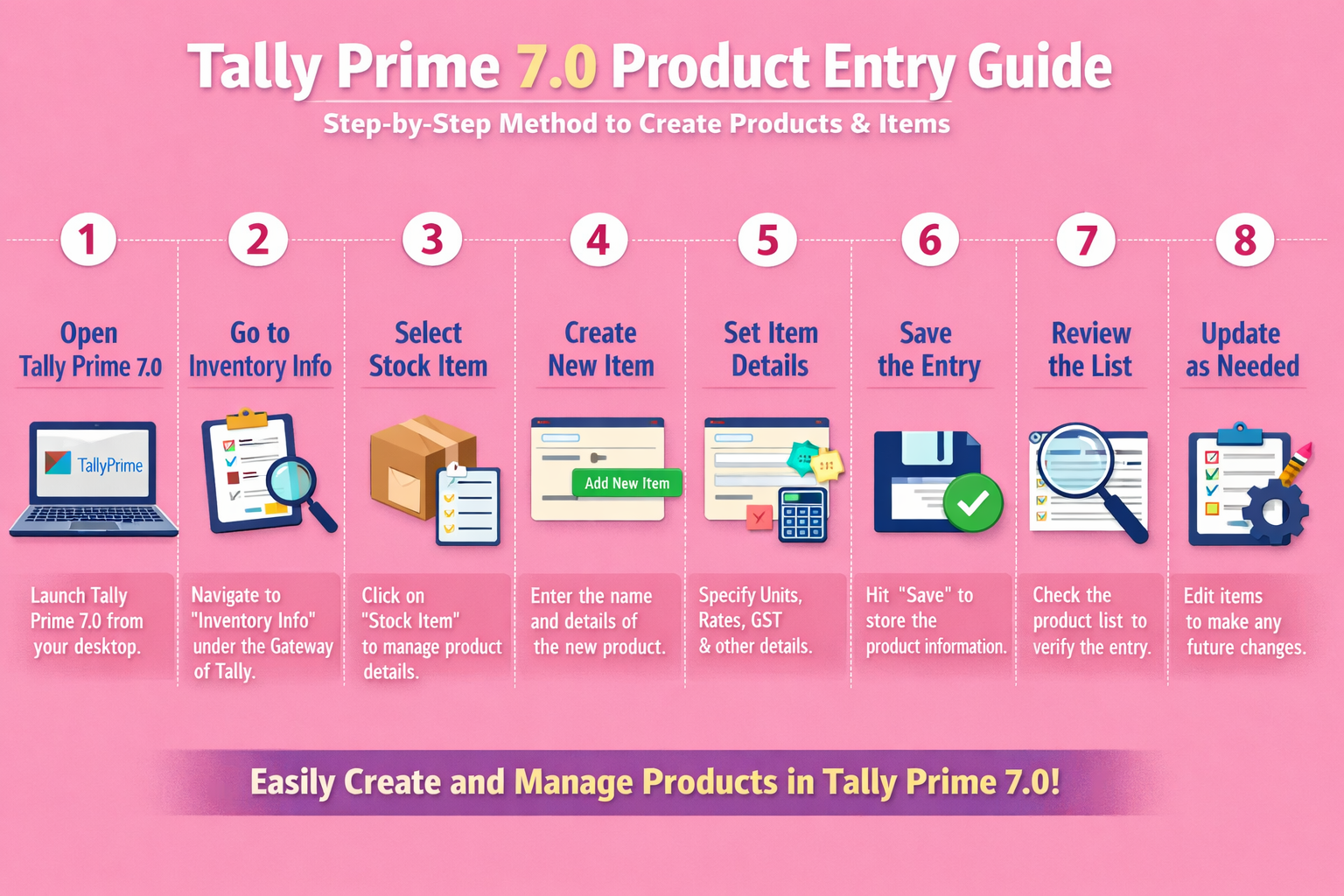
Tally Prime 7.0 Product Entry Guide: Step-by-Step Method to Create Products & Items

Call CA Tally HelpDesk +91 9205471661, 8368262875

Tally Prime 7.0 Product Entry Guide: Step-by-Step Method to Create Products & Items
By CA. Mayankh Singhaal   |   Published on: 07-02-2026 | 8 min read


Product (Stock Item) creation is one of the most important steps in Tally Prime 7.0. Correct product entries ensure accurate billing, proper stock tracking, correct GST calculation, and reliable reports. Whether you are a trader, wholesaler, retailer, or accountant, understanding how to create products properly in Tally Prime is essential.

This guide explains what product entries are, why they matter, and how to create products and items step by step in Tally Prime 7.0, along with best practices and common mistakes to avoid.


What Is Product Entry in Tally Prime 7.0?

Product entry in Tally Prime refers to the creation of Stock Items under the inventory module. Each stock item represents a product that you buy, sell, or store in your business.

A properly created product entry allows you to:

  • Track stock quantity and value

  • Generate accurate sales and purchase invoices

  • Apply correct GST and HSN codes

  • View item-wise profitability


Why Product Entry Is Important in Tally Prime

Incorrect or incomplete product entries can lead to:

  • Wrong stock balances

  • GST calculation errors

  • Incorrect profit reports

  • Inventory mismatch during audits

Correct product setup ensures:

  • Smooth billing

  • Accurate GST returns

  • Reliable inventory reports

  • Better business decision-making


Pre-Requisites Before Creating Products in Tally Prime 7.0

Before starting product entry, ensure the following:

1. Enable Inventory Features

  1. Open Tally Prime

  2. Press F11 (Features)

  3. Enable Maintain Inventory

  4. Enable Allow Invoicing

  5. Save the settings


2. Create Stock Groups (Recommended)

Stock Groups help organize products logically.

Examples:

  • Electronics

  • Garments

  • Hardware

  • FMCG Items

Steps:

  1. Go to Gateway of Tally

  2. Select Create → Stock Group

  3. Enter group name

  4. Save


3. Create Units of Measure

Units define how products are measured.

Examples:

  • Nos

  • Pcs

  • Kg

  • Box

  • Meter

Steps:

  1. Go to Create → Units

  2. Select Simple Unit

  3. Enter unit symbol and formal name

  4. Save


Step-by-Step Process to Create Product (Stock Item) in Tally Prime 7.0

Step 1: Open Stock Item Creation Screen

  1. Go to Gateway of Tally

  2. Select Create → Stock Item


Step 2: Enter Basic Product Details

Fill in the following fields carefully:

Name

  • Enter product name clearly

  • Avoid duplicate or confusing names

Example:
LED Bulb 9W Philips


Alias (Optional)

Used for alternative names or codes.


Under (Stock Group)

  • Select the appropriate stock group

  • Helps in category-wise reporting


Step 3: Define Units and Quantities

Units

  • Select unit of measurement (Nos, Pcs, Kg, etc.)

Opening Balance

  • Enter opening quantity and value (if stock already exists)


Step 4: Enable GST Details (Very Important)

Set/Alter GST Details: Yes

Fill the following:

  • HSN Code

  • GST Rate (5%, 12%, 18%, 28%)

  • Applicable from date

Correct GST setup ensures:

  • Accurate tax calculation

  • Correct GST reports


Step 5: Set Pricing Details (Optional but Recommended)

You can define:

  • Standard cost

  • Standard selling price

  • MRP (for retail businesses)

This helps in:

  • Faster billing

  • Profit margin analysis


Step 6: Save the Product

Press Ctrl + A to save the stock item.

Your product is now created successfully


Frequently Asked Questions

What is a product entry in Tally Prime 7.0?

Product entry in Tally Prime 7.0 refers to creating Stock Items in the inventory module. Each stock item represents a product you buy, sell, or store, and is used for billing, stock tracking, and GST calculation.

Is it mandatory to enable inventory before creating products in Tally Prime?

Yes. You must enable Maintain Inventory and Allow Invoicing in F11 (Features) before you can create product (stock item) entries.

Can I create products without GST details?

You can, but it is not recommended for GST-registered businesses. Missing GST details may cause incorrect tax calculation and errors in GST returns.

Can I edit product details after creation?

Yes. Go to Alter → Stock Item, select the product, make changes, and save. However, changing units or GST details after transactions should be done carefully.

About the Author

Written by CA. Mayankh Singhaal 07-02-2026

CA. Mayankh Singhaal is a Chartered Accountant experienced in accounting systems, statutory audits, and compliance advisory. He has worked with businesses across different sectors to improve reporting accuracy and inventory tracking. His writing focuses on structured growth and compliance-ready operations.


Verified Content 8 min read Support: +91 9205471661, 8368262875
For Tally Discount Scheme and Inquiries,
Call us at +91 9205471661, 8368262875.

Tally Prime Auditor Renewal (One Year)

Applicable for CAs / Firms Using GOLD (Multi User ) Only

Renew your license now and upgrade from Tally ERP 9 to Tally Prime for Free!

₹ 6750 + 18% GST (₹ 1215)

Tally Prime Auditor Renewal (Two Years)

Applicable for CAs / Firms Using GOLD (Multi User ) Only

Renew your license now and upgrade from Tally ERP 9 to Tally Prime for Free!

₹ 12150 + 18% GST (₹ 2187)

Tally Prime Gold Renewal (One Year)

Unlimited Multi-User Edition For Multiple PCs on LAN Environment

Renew your license now and upgrade from Tally ERP 9 to Tally Prime for Free!

₹ 13500 + 18% GST (₹ 2430)

Tally Prime Gold Renewal (Two Years)

Unlimited Multi-User Edition For Multiple PCs on LAN Environment

Renew your license now and upgrade from Tally ERP 9 to Tally Prime for Free!

₹ 24300 + 18% GST (₹ 4374)

Tally Prime Silver Renewal  (One Year)

Single User Edition For Standalone PCs ( Not applicable for Rental License )

Renew your license now and upgrade from Tally ERP 9 to Tally Prime for Free!

₹ 4500 + 18% GST (₹ 810)

Tally Prime Silver Renewal  (Two Years)

Single User Edition For Standalone PCs ( Not applicable for Rental License )

Renew your license now and upgrade from Tally ERP 9 to Tally Prime for Free!

₹ 8100 + 18% GST (₹ 1458)

Tally On Cloud

Tally On Cloud ( Per User Annual)

Now access Tally Prime anytime from anywhere – Just Deploy your Tally License and Tally Data on our Cloud Solution.

₹ 7000 + 18% GST (₹ 1260)

Tally Prime Gold

Unlimited Multi-User Edition

For EMI options, please Call: +91 742 877 9101 or E-mail: tally@binarysoft.com (10:00 am – 6: 00 pm , Mon-Fri)

₹ 67500 + 18% GST (₹ 12150)

Tally Prime Silver to Tally Prime Gold

Unlimited Multi-User Edition For Multiple PCs on LAN Environment

Renew your license now and upgrade from Tally ERP 9 to Tally Prime for Free!

₹ 45000 + 18% GST (₹ 8100)

Tally Prime Silver

Single User Edition For Standalone PCs

For EMI options, please Call: +91 742 877 9101 or E-mail: tally@binarysoft.com (10:00 am – 6: 00 pm , Mon-Fri)

₹ 22500 + 18% GST (₹ 4050)

Tally On AWS Cloud Personal (For 1 user)

(Per User/One Year)

TallyPrime latest release pre-installed

₹ 7200 + 18% GST (₹ 1296)

Tally On AWS Cloud Regular (Upto 2 users)

(Two Users/One Year)

TallyPrime latest release pre-installed

₹ 14400 + 18% GST (₹ 2592)

Tally On AWS Cloud Regular Plus (Upto 4 users)

(Four Users/One Year)

TallyPrime latest release pre-installed

₹ 21600 + 18% GST (₹ 3888)

Tally On AWS Cloud Regular Pro (Upto 8 users)

(Eight Users/One Year )

TallyPrime latest release pre-installed

₹ 43200 + 18% GST (₹ 7776)

Tally On AWS Cloud Performance (Upto 12 users)

(Twelve Users/One Year)

TallyPrime latest release pre-installed

₹ 64800 + 18% GST (₹ 11664)

Tally On AWS Cloud Performance Plus (Upto 16 users)

(Sixteen Users/One Year)

TallyPrime latest release pre-installed

₹ 86400 + 18% GST (₹ 15552)

For Tally Discount Scheme and Inquiries,
Call us at +91 9205471661, 8368262875.

Tally Query | Discounted Tally New License | Discounted Tally Renewal