Call CA Tally HelpDesk
+91 9205471661,
7428779101
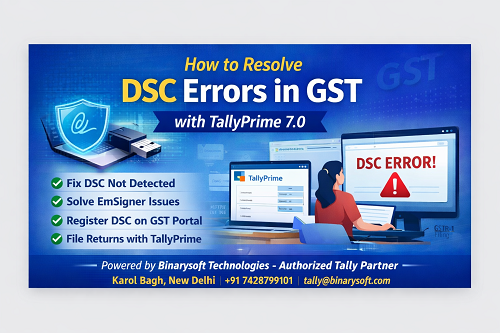
Digital Signature Certificate (DSC) errors are one of the most common issues faced by businesses, accountants, and CA firms while filing GST returns. Even when GST data is correct, returns may fail due to DSC-related problems such as certificate mismatch, token detection issues, or EmSigner errors.
This article explains what DSC errors are, why they occur, and how to resolve DSC errors in GST using Tally Prime 7.0, in a simple and practical manner.
Introduction
While filing GST returns such as GSTR-1, GSTR-3B, refund applications, or E-way bills, digital authentication is mandatory. For companies, LLPs, and certain registered entities, Digital Signature Certificate (DSC) is compulsory.
If the DSC is not configured properly, GST filing through Tally Prime may fail, resulting in submission delays and compliance risks.
This guide provides a step-by-step solution to fix DSC errors in GST filing using Tally Prime 7.0.
What is a DSC Error in GST?
A DSC error occurs when the GST system is unable to authenticate or verify the digital signature used to submit returns. This may happen due to expired certificates, driver issues, PAN mismatch, or incorrect system configuration.
Common DSC Error Messages in GST
- No Digital Signature Certificate found
- Failed to establish connection with signer
- Signer certificate not valid
- DSC not registered on GST portal
- PAN mismatch with DSC
- EmSigner service not running
Main Reasons for DSC Errors in Tally Prime
1. Expired Digital Signature Certificate
DSCs are issued for a limited validity period (generally 1–3 years). If expired, GST filing will fail.
2. DSC Not Registered on GST Portal
Even a valid DSC must be registered or re-registered on the GST portal.
3. USB Token Driver Not Installed or Corrupted
Without proper drivers, the system cannot detect the DSC token.
4. PAN Mismatch
The PAN embedded in the DSC must match the PAN of the authorized signatory registered on GST.
5. EmSigner Utility Not Running
GST uses EmSigner software for digital authentication. If it is not running, signing will fail.
6. Multiple DSC Tokens Connected
When more than one DSC is plugged in, the system may fail to identify the correct certificate.
Step-by-Step Solution to Resolve DSC Error in GST (Tally Prime 7.0)
Step 1: Check DSC Validity
- Insert the USB token
- Open token management software
- Verify expiry date
- Renew the DSC if expired
Step 2: Register or Re-Register DSC on GST Portal
- Log in to the GST portal
- Go to My Profile → Register / Update DSC
- Select the authorized signatory
- Run EmSigner utility
- Plug in the DSC token
- Complete registration
Re-registration is mandatory after DSC renewal or system format.
Step 3: Install or Update USB Token Drivers
- Uninstall old token drivers
- Restart the system
- Install latest drivers provided by token vendor
- Plug the token only after installation
Step 4: Run EmSigner Utility Properly
- Download EmSigner from GST portal
- Run as Administrator
- Allow through firewall and antivirus
- Confirm EmSigner is running in system tray
Step 5: Verify PAN of Authorized Signatory
- Check PAN details in DSC
- Ensure same PAN is mapped as authorized signatory in GST
- Update signatory details if required
Step 6: File GST Return in Tally Prime 7.0
- Open company in Tally Prime
- Go to Gateway of Tally → GST → Returns
- Select the required return
- Choose Sign using DSC
- Select correct certificate
- Submit return
Best Practices to Avoid DSC Errors
- Keep only one DSC token connected
- Renew DSC before expiry
- Always use updated drivers
- Keep EmSigner running during filing
- Avoid antivirus blocking EmSigner
- File returns before peak due dates
Why DSC Errors Increase Near GST Due Dates
During peak filing periods:
- GST servers experience heavy traffic
- EmSigner response time increases
- USB token conflicts become frequent
Early filing significantly reduces DSC-related issues.
How Tally Prime 7.0 Simplifies GST DSC Filing
- Improved GST return interface
- Better DSC detection
- Clear validation messages
- Faster GST portal integration
- Reduced manual intervention
Conclusion
DSC errors in GST filing can delay compliance and increase workload, but most issues are easy to resolve by checking certificate validity, installing correct drivers, running EmSigner properly, and configuring Tally Prime 7.0 correctly.
Following the steps outlined above ensures smooth and error-free GST return filing.
Powered by Binarysoft Technologies – Authorized Tally Partner
Powered by Binarysoft Technologies
Authorized Tally Partner
Location:
1626/33, 1st Floor, Naiwalan,
Karol Bagh, New Delhi – 110005, INDIA
Contact:
+91 7428779101
+91 9205471661
+91 8368262875
Email:
tally@binarysoft.com
Working Hours:
10:00 AM – 6:00 PM (Mon–Fri)
Frequently Asked Questions
Can GST returns be filed without DSC?
Yes, proprietors can use OTP-based verification. Companies and LLPs must use DSC.
Why DSC works on GST portal but not in Tally Prime?
Usually due to missing drivers, EmSigner not running, or multiple tokens connected.
How often DSC needs to be registered on GST portal?
DSC must be re-registered after renewal or system change.
Is Class-3 DSC mandatory for GST?
Yes, Class-3 DSC is mandatory for companies, LLPs, and foreign entities.
CA. Arvindh Khetwaani is a Chartered Accountant with experience in financial reporting, compliance management, and accounting software implementation. He has assisted businesses in adopting structured inventory and billing practices, and his articles focus on accuracy, controls, and sustainable business growth.