Call CA Tally HelpDesk
+91 9205471661,
7428779101
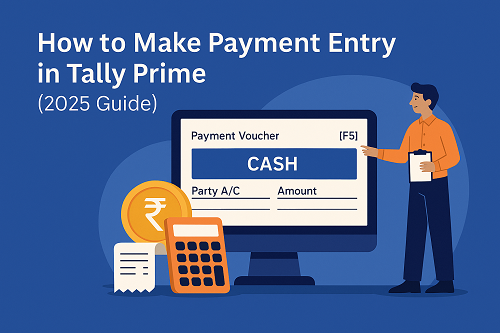
Recording payment entries correctly is one of the most important tasks in accounting. Whether you are paying suppliers, clearing expenses, making bank payments, or settling dues—Tally Prime makes the process simple, fast, and fully GST-compliant.
This complete, non-copyrighted 6-minute guide explains:
✔ What a payment entry is
✔ Steps to enable payment vouchers
✔ How to pass payment entries in Tally Prime (Cash, Bank, UPI, Cheque)
✔ Examples for easy understanding
✔ Common mistakes users make
✔ Tips to keep your payment records clean
This guide is ideal for beginners, accountants, business owners, and students.
What Is a Payment Entry in Tally?
A payment entry is used to record any amount paid out of the business, such as:
- Paying suppliers
- Paying salaries
- Paying utility bills (rent, electricity, etc.)
- Paying for purchases
- Paying GST or taxes
- Paying petty cash expenses
- Clearing outstanding liabilities
Every payment entry reduces the balance of the Cash or Bank account.
Step 1: Enable Payment Voucher in Tally Prime
Before making payment entries, ensure the voucher type is active.
Go to:
Gateway of Tally → Settings → Voucher Type → Payment → Enable
OR simply press:
➡V (Voucher)
➡F5 (Payment)
Payment Voucher screen will open.
Step 2: Choose Mode of Payment (Cash / Bank / UPI / Cheque)
Tally Prime shows Modes at the top:
✔ As Voucher Mode – Traditional view
✔ As Invoice Mode – GST style for expenses
✔ Banking Mode – Cheque / NEFT / RTGS / UPI
Select the one based on your payment method.
Examples:
- Cash Payment → Choose Cash ledger
- Bank Payment → Select Bank Account
- UPI/NEFT Payment → Select Bank + Payment Mode
- Cheque Payment → Select Bank + Enter Cheque No.
Step 3: Pass a Payment Entry (Step-by-Step)
Here’s the simplest structure of a payment:
➡Credit: Cash / Bank (Money goes out)
➡Debit: Expense / Supplier / Ledger
Example 1: Cash Payment Entry
Scenario: You paid ₹2,000 for office stationery.
Steps:
1️⃣ Press F5: Payment
2️⃣ Select Cash
3️⃣ Debit: Stationery Expenses
4️⃣ Credit: Cash (auto-selected)
5️⃣ Narration: Being stationery purchased for office use
6️⃣ Save entry
✔ That’s it! Payment entry is recorded.
Example 2: Bank Payment to Supplier
Scenario: You paid ₹25,000 to supplier ABC Traders via NEFT.
Steps:
1️⃣ Press F5: Payment
2️⃣ Select Bank Account
3️⃣ Debit: ABC Traders
4️⃣ Enter amount: ₹25,000
5️⃣ Set Bank Allocations
- Mode of Payment: NEFT
- Instrument No: Transaction ID
6️⃣ Add narration
7️⃣ Save entry
✔ Supplier dues get cleared automatically.
Example 3: Payment of GST in Tally
1️⃣ Go to Payment Voucher
2️⃣ Debit: GST Ledger (CGST/SGST/IGST)
3️⃣ Credit: Bank Account
4️⃣ Enter UTR/Challan No
5️⃣ Save
✔ GST payment updated in books.
Example 4: Salary Payment in Tally
1️⃣ Enable Payroll or create Salary Expense Ledger
2️⃣ Press F5: Payment
3️⃣ Debit: Salary Expense
4️⃣ Credit: Bank/Cash
5️⃣ Save entry
✔ Salary recorded.
Important Options in Payment Entry Screen
1. Cost Centers (If enabled)
Useful for tracking department-wise expenses.
2. TDS/TCS Ledger Selection
Auto deducts statutory tax before payment.
3. Bank Reconciliation Fields
When paying through bank, you can enter:
- Cheque No.
- Cheque Date
- Transaction ID
- Bank Allocation
4. Narration
Helps auditors understand each payment clearly.
How to View All Payment Entries
Go to:
Gateway of Tally → Display More Reports → Accounts Books → Cash/Bank Book
OR use:
Voucher Register → Payment Register
You can see, filter, or correct entries.
Common Mistakes to Avoid in Payment Entries
❌ Using wrong ledger (Expense vs Supplier)
Always check whether expense is paid directly or clearing payable.
❌ Not entering correct bank mode
This affects bank reconciliation.
❌ Forgetting narration
Makes audit difficult.
❌ Using Cash for large payments
Avoid cash for purchases above ₹10,000 to stay compliant.
❌ Not matching payment with outstanding report
Mismatch leads to pending dues.
Tips for Clean & Accurate Payment Records
✔ Always create proper ledgers before entering payment
✔ Use Invoice Mode for detailed expense recording
✔ Match bank entries with bank statement weekly
✔ Use Cost Centers for tracking department expenses
✔ Keep narration meaningful
✔ Review Payment Register weekly
Final Summary
Payment entry in Tally Prime is simple once you understand the basics:
- Debit: What is being paid for
- Credit: Cash or Bank account
Tally allows fast, accurate, GST-ready payment tracking with multiple modes such as:
✔ Cash
✔ Bank
✔ UPI
✔ Cheque
✔ NEFT / RTGS
By following the steps and avoiding common errors, you can maintain clean, professional, and audit-ready payment records in Tally Prime.
Powered by Binarysoft Technologies
Authorized Tally Partner
Location : 1626/33, 1st Floor, Naiwalan, Karol Bagh, New Delhi – 110005, INDIA
Contact us : +91 7428779101, 9205471661, 8368262875
Email us : tally@binarysoft.com (10:00 AM – 6:00 PM, Mon–Fri)
CA. Praneet Bansaal is a Chartered Accountant with experience in taxation, accounting controls, and financial process reviews. He has advised businesses on aligning inventory movement with accounting and GST requirements. His content focuses on compliance, accuracy, and long-term sustainability.