Call CA Tally HelpDesk
+91 9205471661,
7428779101

Introduction
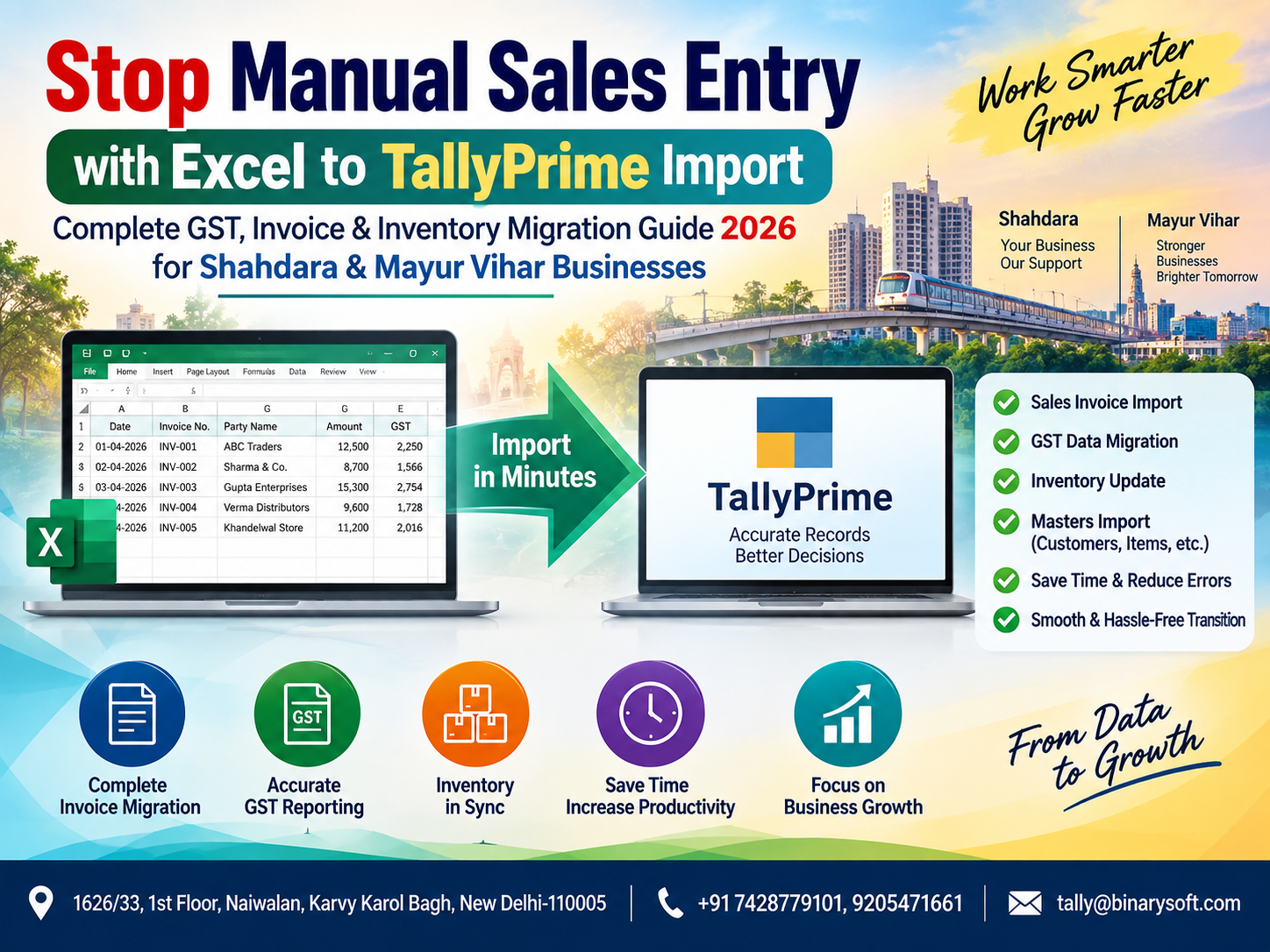
Many businesses maintain their sales data in Excel—either generated from billing software, POS systems, or manual worksheets. However, when it comes to GST compliance, accounting accuracy, and reporting, this data must be entered into Tally.
Manually entering hundreds or thousands of sales invoices into Tally is:
- Time-consuming
- Error-prone
- Inefficient
That’s why Excel to Tally sales import is widely used by accountants, CA firms, and businesses to save time and ensure accuracy.
This article explains how to import sales data from Excel into Tally, formats required, common mistakes, and best practices—using simple, practical language.
What Is Excel to Tally Sales Import?
Excel to Tally sales import is the process of uploading sales transactions prepared in Excel directly into Tally without manual entry.
It helps import:
- Sales vouchers
- Party details
- Item details
- GST breakup
- Invoice numbers and dates
into Tally in bulk.
Why Businesses Prefer Excel to Tally Sales Import
Businesses use Excel import because it:
- Saves manual data entry time
- Reduces accounting errors
- Ensures GST accuracy
- Helps migrate old data
- Allows bulk upload of invoices
- Improves productivity
This feature is especially useful during:
- Year-end accounting
- GST return preparation
- Software migration
- High-volume sales periods
Prerequisites Before Importing Sales from Excel to Tally
Before starting the import process, ensure:
- Tally company is already created
- Ledgers (customers, sales, GST, cash/bank) exist
- Stock items (if applicable) are created
- GST configuration is enabled
- Excel data is clean and verified
Using solutions built on Tally Solutions ensures smoother import and reconciliation.
Common Data That Can Be Imported from Excel
You can import:
- Invoice Date
- Invoice Number
- Party Name
- Sales Ledger
- Item Name
- Quantity & Rate
- Taxable Value
- CGST / SGST / IGST
- Total Invoice Value
Excel Format for Tally Sales Import (Basic Structure)
A simple Excel sales format usually includes:
- Date
- Voucher Number
- Party Name
- Sales Ledger
- Item Name
- Quantity
- Rate
- Amount
- GST Rate
- Tax Amount
�� Column names and sequence must match Tally import requirements or tool mapping.
Methods to Import Excel Sales Data into Tally
Method 1: XML Import (Native Tally Method)
Tally supports data import via XML format.
Steps:
- Convert Excel file to XML format
- Open Tally
- Go to Gateway of Tally → Import Data → Vouchers
- Select XML file
- Import data
✔️ Suitable for technically sound users or developers.
Method 2: Excel to Tally Import Utility (Most Preferred)
Using a specialized Excel-to-Tally import tool is the easiest and safest method.
Advantages:
- No XML knowledge required
- Column mapping support
- Error logs available
- Bulk import with validation
This is the most commonly used method by professionals.
Step-by-Step: Excel to Tally Sales Import (Using Utility)
Step 1: Prepare Excel File
- Clean data
- Remove blank rows
- Ensure correct GST rates
- Match party and item names with Tally
Step 2: Open Import Tool
- Select Tally company
- Load Excel file
Step 3: Map Excel Columns with Tally Fields
- Date → Voucher Date
- Invoice No → Voucher Number
- Party → Party Ledger
- Item → Stock Item
- Tax → GST Ledgers
Step 4: Validate Data
- Check missing ledgers
- Review GST mismatch
- Correct errors shown
Step 5: Import Sales Data
- Click Import
- Review success and error logs
Step 6: Verify in Tally
- Open Sales Register
- Check invoices
- Verify GST breakup
GST Considerations During Excel to Tally Import
While importing sales data, ensure:
- Correct GST rate per item
- Correct tax type (CGST/SGST or IGST)
- Proper HSN codes
- Accurate place of supply
Incorrect GST data may lead to GSTR-1 and GSTR-3B mismatch.
Common Errors During Excel to Tally Sales Import
- Party ledger not found
- Stock item mismatch
- Wrong date format
- Duplicate invoice numbers
- Incorrect GST ledger mapping
- Invalid voucher type
These can be avoided by proper data preparation and validation.
Best Practices for Smooth Excel to Tally Import
- Always take company backup before import
- Test with small data first
- Maintain standard Excel format
- Avoid duplicate invoice numbers
- Reconcile totals after import
Who Should Use Excel to Tally Sales Import?
This solution is ideal for:
- Traders and wholesalers
- Retail chains
- Manufacturing units
- CA and accounting firms
- E-commerce sellers
- GST consultants
Benefits of Excel to Tally Sales Import
- 70–90% time saving
- Improved accuracy
- Faster GST compliance
- Easy audit trail
- Scalable for large data
How Binarysoft Technologies Helps
For businesses and professionals looking for reliable Excel to Tally import solutions:
Powered by Binarysoft Technologies – Authorized Tally Partner
�� Location:
1626/33, 1st Floor, Naiwalan, Karol Bagh, New Delhi – 110005, INDIA
�� Contact Us:
+91 7428779101
+91 9205471661
+91 8368262875
�� Email:
tally@binarysoft.com
�� Working Hours:
10:00 AM – 6:00 PM (Mon–Fri)
What Binarysoft Technologies Offers:
- Excel to Tally sales import setup
- GST-ready data validation
- Custom import formats
- Error correction & reconciliation
- Training and ongoing support
Conclusion
Excel to Tally sales import is the smartest way to handle large volumes of sales data efficiently. With the right format, tools, and guidance, businesses can save time, avoid errors, and ensure GST compliance.
For professional setup and support, Binarysoft Technologies is your trusted partner.
Frequently Asked Questions
Can I import GST sales invoices from Excel to Tally?
Yes. GST sales invoices can be imported with proper tax mapping.
Is XML mandatory for Excel to Tally import?
No. Import utilities allow direct Excel import without XML knowledge.
Can I import bulk invoices at once?
Yes. Thousands of invoices can be imported in one go.
Will imported data reflect in GST returns?
Yes, if GST configuration and data are correct.
CA. Ankit Vardiya works closely with traders, wholesalers, and service businesses on accounting automation, GST reporting, and audit readiness. His professional exposure to day-to-day business operations allows him to translate complex accounting concepts into practical guidance for Indian business owners.